
Blog
How to tell if my Windows is original
How to Tell if Your Windows Is Genuine (The Definitive Guide 2025)
Many people believe that if Windows appears as activated, then it is genuine. But that isn’t always true. In this guide, you’ll learn how to verify if your Windows is truly genuine.
Buy a genuine Windows license
1. Check activation in settings
The simplest way to check if Windows is activated is to access the system settings.
Configurações → Sistema → Ativação

2. Check via Command Prompt
You can also check the license status using Windows commands.
Open Command Prompt as an administrator and type:
slmgr /xpr
This command shows whether Windows is permanently activated or if the license has an expiration date.

3. Check license details
To view complete license information, run the command:
slmgr /dlv
It will display details such as license type and activation status.
Retail → original license purchased separately
OEM → license that came with the computer
Volume/KMS → corporate activation

4. Check the license label (OEM)
Computers sold by manufacturers usually have a pre-installed OEM license tied to the device’s hardware.

Activate your Windows now
Common issues
“Activate Windows” message
This means that Windows is not activated or the license has expired.
License with an expiration date
If the slmgr command shows an expiration date, it is likely a temporary activation.
Activation error
Make sure the key you entered matches the version of Windows installed.
Frequently Asked Questions
How do I know if my Windows is genuine?
Check the status in Settings → System → Activation or run the slmgr /xpr command.
Does an activated Windows mean it’s genuine?
Not always. Some activations may be temporary or performed using unofficial tools.
Which command checks the Windows license?
The most commonly used commands are slmgr /xpr and slmgr /dlv.
Related content
View all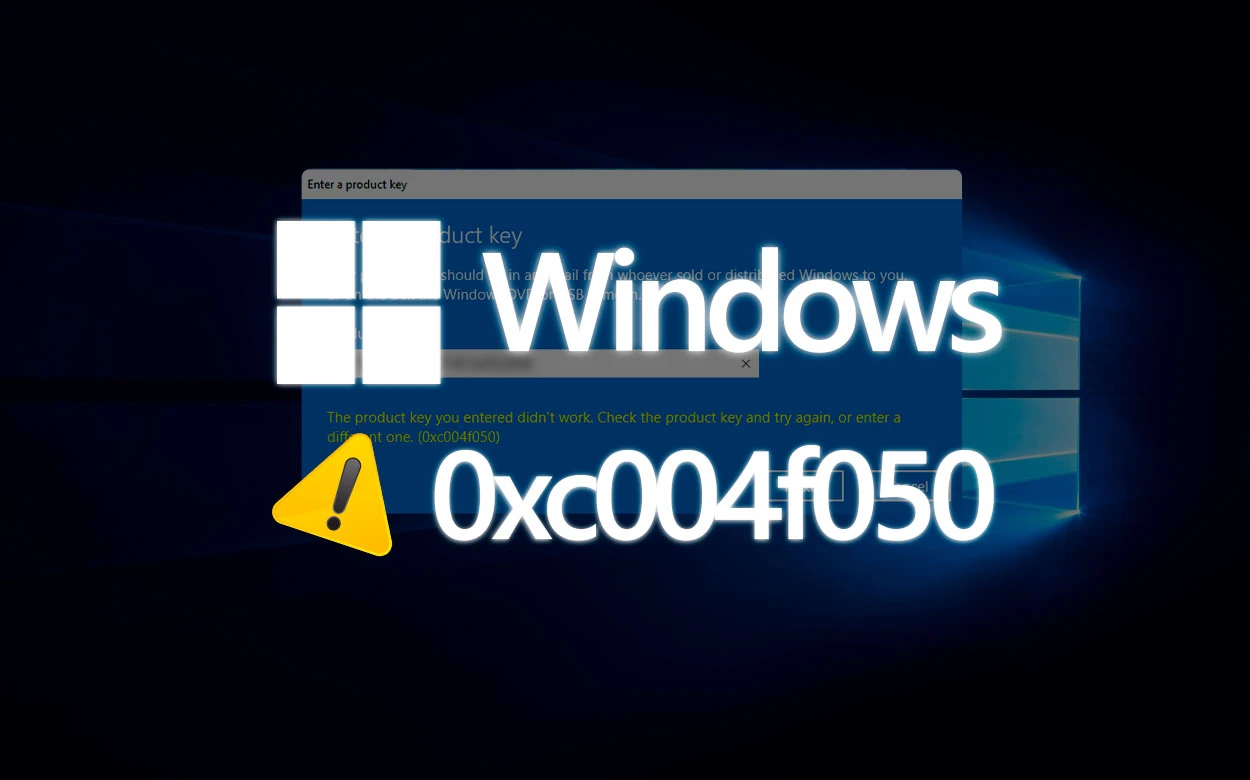
Want to buy a genuine license with automatic delivery?
Check our products and activate in minutes.