
Blog
office activation error
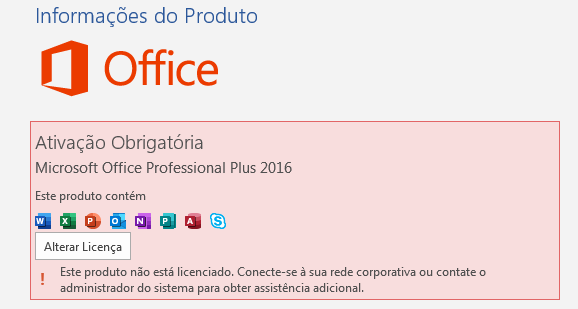
Office Activation Error: How to Fix It Effectively
The Microsoft Office activation error is a common problem faced by many users. This error can occur for various reasons, such as connection issues, invalid product keys, or even system failures. In this article, we’ll explore the causes of this error and provide a step-by-step guide to resolving it, as well as answer frequently asked questions on the topic.
Step-by-Step Guide to Resolving the Office Activation Error
Here is a practical guide to resolving the Office activation error:
Check Your Internet Connection
Make sure your device is connected to the internet. An unstable connection can cause activation failures.
Restart Your Computer
Sometimes, a simple restart can resolve temporary issues that prevent Office from activating.
Use the Office Troubleshooter
Access the Microsoft Office Troubleshooter. To do this, go to Settings > Update & Security > Troubleshoot and follow the instructions.
Check the Product Key
Confirm that the product key you entered is valid and matches the version of Office you are trying to activate.
Uninstall and Reinstall Office
If the previous steps don’t work, consider uninstalling Office and reinstalling it. This may fix corrupted files.
Contact Microsoft Support
If the problem persists, contact Microsoft technical support for expert assistance.
Frequently Asked Questions
What causes the Office activation error?
Causes may include an invalid product key, internet connection issues, or corrupted Office files.
Can I use Office without activation?
Yes, but with limitations. Many features will be unavailable until you activate the product.
How can I find my Office product key?
The product key can be found in the purchase confirmation email or on the physical product packaging.
What should I do if the key doesn’t work?
Check that the key was entered correctly. If it still doesn’t work, contact Microsoft Support.
Conclusion
Resolving the Office activation error can be simple if you follow the correct steps. Checking your internet connection, restarting your computer, and ensuring the product key is valid are steps that can help resolve the issue quickly. If the error persists after following all steps, don’t hesitate to contact Microsoft technical support. Keep your Office up to date and fully functional to ensure an uninterrupted user experience.
Purchase an original license at: https://casadosoftware.com.br
Related content
View all

Want to buy a genuine license with automatic delivery?
Check our products and activate in minutes.