
Blog
How to install Office 365
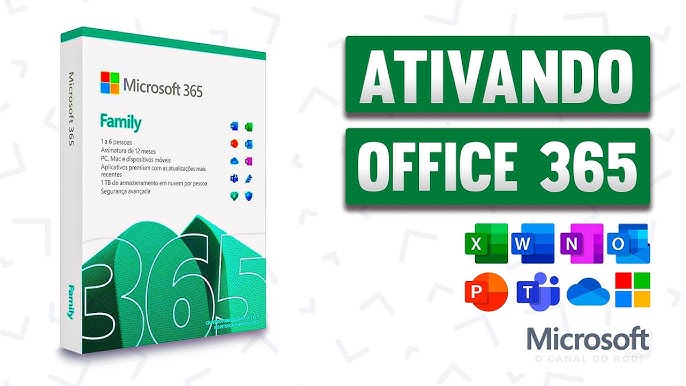
How to Install and Activate Microsoft Office 365 Plus
In this tutorial, you’ll learn step by step how to install and activate Microsoft Office 365 Plus on your computer.
1. What is Office 365 Plus
Office 365 Plus is a full version of the Microsoft Office suite that includes the main productivity apps used in everyday life.
- Microsoft Word
- Microsoft Excel
- Microsoft PowerPoint
- Microsoft Outlook
The applications are installed directly on your computer and can be used normally after activating your account.
2. Download Office 365
To start the download, visit the Microsoft 365 portal:
Sign in using the account provided in the activation email.
Then click:
Instalar aplicativos
The installer will automatically download to your computer.
3. Install Office
After downloading the installer, open the file and wait for the installation process to complete.
Installation may take a few minutes depending on your internet speed.
During the process, the applications will be installed automatically.
- Word
- Excel
- PowerPoint
- Outlook
4. Activate Office
After installation, open any Office application, such as Word or Excel.
Then go to:
Arquivo → Conta
Enter the username and password for the account provided in the activation email.
If everything is correct, the following message will appear:
Produto ativado
::: ATTENTION :::
We recommend that you DO NOT use OneDrive for this activation account.
Keep your files saved in your personal storage or on your local hard drive for full control.
If an error occurs with the activation account, it may be replaced, and you will not be able to recover files stored in OneDrive from the activation account.
We also recommend performing regular backups of your data to external devices or reliable storage services.
5. Check if Office is activated
Open any Office application and go to:
Arquivo → Conta
If the message "Product activated" appears, it means that Office has been successfully installed and activated.
Related content
View all
Want to buy a genuine license with automatic delivery?
Check our products and activate in minutes.